
← all questions · Power-User Tips
Can I integrate external tools (Google Docs, etc.) into my MCS system?
Yes! Notion makes it easy to embed or link to external tools inside your MCS workspace—so you can keep everything streamlined without jumping between apps.
Ways to integrate external tools:
Add links to Google Docs, Sheets, or external resources
Paste the link into the Description field of any Task, Milestone, Dream, or Spark or in the open-ended area at the bottom for easy access.
Use Notion’s Web Clipper
Quickly save any webpage as a Spark for research or inspiration.
How to add a clipped webpage to your Spark Catcher:
-
Install the Notion Web Clipper browser extension.
-
Within the Web Clipper extension, click Add To when saving a webpage.
-
Search for DB: Spark Catcher to send it directly into your Spark Catcher database. Web Clipper will remember this setting for subsequent page clips.
Use Notion Calendar (Separate App)
If you want to overlay your Google Calendar with tasks, reflections, and milestones from your MCS System, Notion Calendar can help.
How to use Notion Calendar:
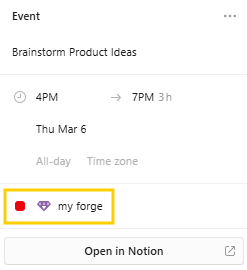
- Open Notion Calendar from the Calendar view of My Forge by clicking the Open in Calendar button
- Connect your Google Calendar and/or Zoom accounts (optional).
- Add new tasks to your 💎 My Forge calendar from Notion Calendar—these will sync back to My Forge inside MCS.
-
This is a great way to schedule blocks of time to work on your most important (Slay First) tasks for the week.
-
You may need to refresh your MCS Vision Portal page to see new tasks you add to MCS via Notion Calendar.
-
Use /embed commands
Type /embed in the extended content area at the bottom of any card to add:
- External websites
- Videos (YouTube, Loom, etc.)
- Google Sheets, Slides, or Notion pages
- And much more!
🦄 Hot Tip: If you frequently reference external docs, consider creating a dedicated Spark Bucket (like “Research & References”) to keep them organized inside MCS.
$97 one-time · 120-day guarantee