
← all questions · Goals & My Forge
How do I use My Forge to stay on track with my quest?
My Forge is where you transform your 55-day quest into action—one task, one Questy, and one Slay Day at a time. It helps you stay focused, track your wins, and refine your approach as you ascend your Mountain.
You created your milestones when you setup Main Character Saga—and My Forge is where you slay them with clarity and focus.
How to use My Forge like a superhero:
✔ Start each Slay Day with power and purpose
- First, review My Mountain – Read your Heroic Quest Statement (HQs) aloud to stoke the fiery embers of your quest.
- Next, complete a Daily or Weekly Reflection in My Energizers – This step is crucial because your Questies and Energizers are logged to your reflection cards.
- Then, fire up My Forge – Grab your most important (Slay First) task and get slayin’.
✔ Use the Board view in My Forge to limit your work in progress—focus on ONE task at a time!
- Keep your tasks in the Not Started column until you’re ready to tackle them.
- Move only ONE task into In Progress at a time.
- If you need to set something down, move it back to Not Started to keep your focus sharp.
✔ Lean on Ask Ember 🔥 for ideas or if you feel stuck
If a milestone or task feels unclear, update its description with any details that are top of mind, then click Update in the Ask Ember 🔥 field for actionable guidance.
✔ Use Calendar view in My Forge to stay grounded in the current week and preview what’s ahead
This view shows your upcoming milestones, tasks, and reflections at a glance, but only displays tasks with start and/or end dates assigned.
✔ Use Timeline view for a bird’s eye view of your quest
This is the best way to visualize how your milestones and time-bound tasks align. You can also adjust milestone dates by dragging the handles on left or right side of each milestone to shift their deadlines as needed.
Remember: The Calendar and Timeline Views only display tasks with assigned dates, while Board and Detail views show all tasks, reflections, and milestones—dated or not.
🌟 Need a quick refresher? Watch the Vision Portal Overview Video below for a step-by-step walkthrough of the Main Character Saga system. Repetition is the key to mastery! 🏆
How to create tasks in My Forge:
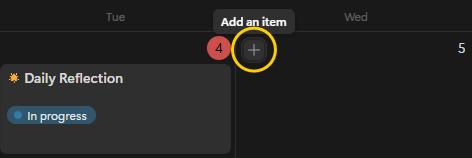
✔ You can click a plus (+) icon next to a date in Calendar view to add a task for that day.
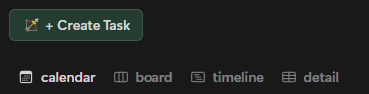
✔ Or click Create Task within My Forge (or within Quick Smash buttons). This adds a task with a due date of the current day—you can change the date by editing the task’s Start+End Date.
✔ Or click any of the New task buttons at the bottom of the columns when in the Board or Detail views of My Forge.

What makes a great task?
✔ Give it a meaningful title – Keep it clear and actionable.
✔ Assign a due date (optional) – If you prefer using Board View for task management, only assign due dates to:
- Time-bound tasks (tasks with a hard deadline).
- Tasks you’ve scheduled dedicated time for in your calendar.
✔ **Prioritize it **— Give your task a Priority:
- Slay First → An important task that moves you closer to Your Mountain
- Slay Later → A task that is meaningful for your quest, but not as essential.
- Summon Allies → A task that is not the highest and best use of your time and should be delegated to someone else.
- Vanquish → A task that no longer fits your quest and is no longer a priority.
✔ Use Vibe Checks – Track how you feel before and after working on a task. ✔ Write a concise Description – What’s the desired outcome? What does “done” look like?
✔ Use Ask Ember if stuck – Add details to the Description field, then click Update in the Ask Ember field to get AI-powered action steps.
✔ Click “I Slayed It!” – Claim your victory when a task is complete.
How to Vanquish a task
(remove tasks that no longer fit)
Not every task you create may serve your quest. If something no longer aligns with your Mountain, Vanquish it! ☁
To Vanquish a task:
✔ Change its priority to Vanquish—this will automatically move it to a hidden “Vanquish” group. ✔ If you want to revisit Vanquished tasks later, go to Board view in My Forge, scroll to the right, and click the Vanquish button to reveal them.
🦄 Hot Tip: Clearing out irrelevant tasks keeps your Forge focused—only keep tasks that truly support your quest.
How to adjust your plan when things change:
✔ Need to refine a milestone? Open its card, update the title/description, and click “Update” in Ask Ember for ideas on how to break it down.
✔ N****eed to shift milestone dates? Open Timeline view in My Forge and drag the handles on left or right of the milestone to adjust start and end dates.
✔ Hit a roadblock on a task? Break it into smaller steps within the task (or as separate tasks), shift gears to another priority, or revisit your Mountain to reconnect with your mission.
🦄 Hot Tip: Limit your work in progress. Multitasking dilutes focus, so keep only one task in “In Progress” at a time. If you need to switch gears, move the previous task back to “Not Started” so you stay focused on what matters most.
$97 one-time · 120-day guarantee